

An ergonomic home office is a workspace designed to align your body in a neutral posture, reducing physical strain during long work sessions. Musculoskeletal disorders cost US businesses $45 billion annually, and 59% of remote workers report back pain as a direct result of poor workstation design. Those numbers make one thing clear: the way you set up ergonomic home office space is not a comfort preference. It is a health decision. The good news is that the right setup does not require a large budget. It requires the right priorities.
What furniture and equipment do you need for an ergonomic home office setup?
The foundation of any ergonomic workspace design is furniture that adjusts to your body, not the other way around. Two pieces matter most: your chair and your desk.
Choosing the right chair
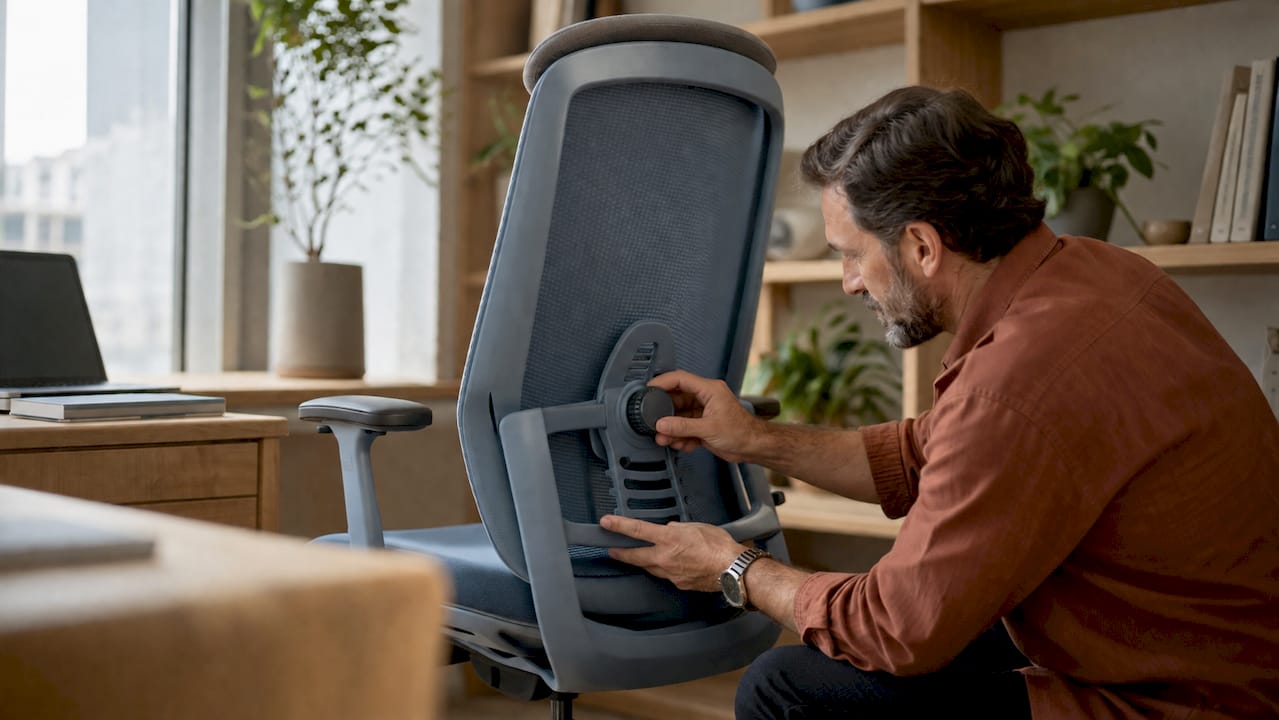
Adjustable lumbar support is the single most important feature in an ergonomic chair. That means support you can move vertically and tune in depth to fit the natural curve of your lower spine. A chair with fixed lumbar support may feel fine for the first hour and cause real discomfort by hour four. When you shop for modern office chairs, look for seat height adjustment, armrests that move up and down, and a seat pan you can tilt forward slightly.
Choosing the right desk
Desk height determines whether your elbows, wrists, and shoulders stay relaxed or tense up over time. A fixed desk at the wrong height forces compensation throughout your entire upper body. A height-adjustable standing desk solves this by letting you shift between sitting and standing throughout the day, which reduces the physical cost of staying in one position for hours. The Alto Home’s Gramercy and Tribeca series are built specifically for this purpose, combining adjustable height mechanics with solid wood construction that fits naturally into a home interior.
Essential ergonomic equipment at a glance
| Equipment | Ergonomic criteria |
|---|---|
| Chair | Adjustable lumbar support, seat height, and armrests |
| Desk | Height adjustable, wide enough for monitor and keyboard |
| Monitor | Positioned at eye level, 20–40 inches from face |
| Keyboard | External, allows elbows near 90 degrees |
| Mouse | Full-size, keeps wrist in neutral position |
| Monitor stand or arm | Raises screen to correct height without stacking books |
| Laptop stand | Raises screen; requires separate keyboard and mouse |
Pro Tip: If you use a laptop as your primary computer, adding an external keyboard and mouse is the single highest-impact fix you can make. A laptop alone forces your neck down and your wrists up at the same time, which is a recipe for chronic strain.
How do you adjust your workstation to maintain neutral posture?
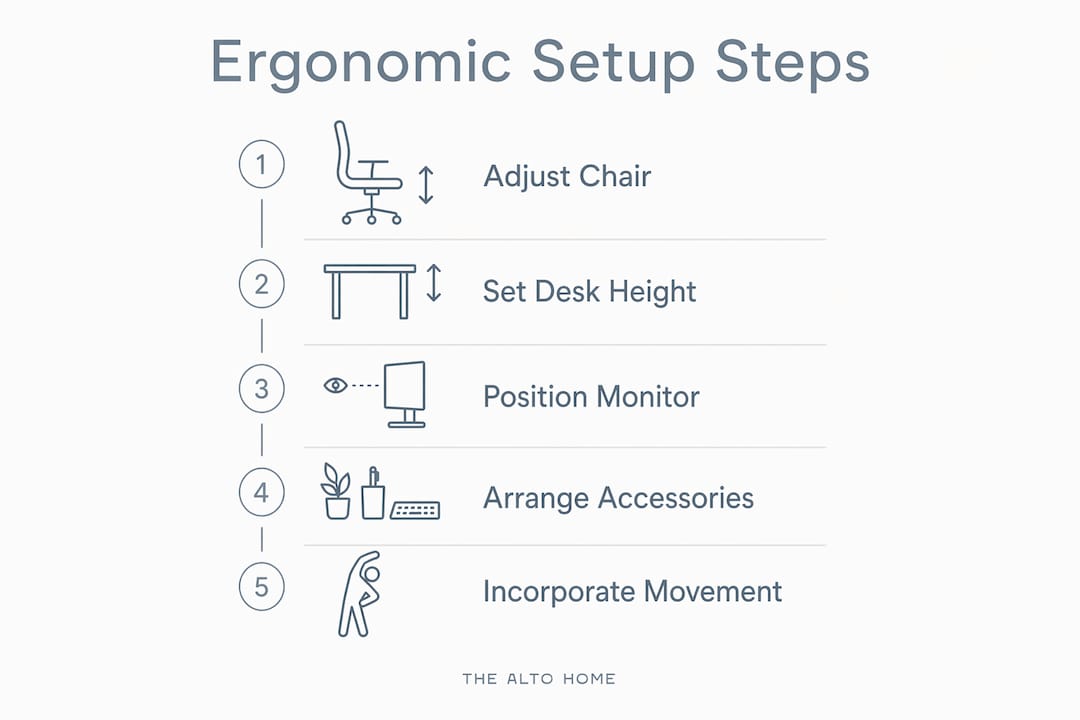
Buying the right equipment is only half the work. Correct adjustment is where most remote workers fall short. Follow these steps in order, since each one builds on the last.
-
Set your chair height first. Sit with your feet flat on the floor and your knees bent at roughly 90 degrees. Your thighs should be parallel to the ground or angled slightly downward. If your feet do not reach the floor, use a footrest.
-
Adjust your lumbar support. Move the lumbar pad up or down until it presses gently into the curve of your lower back. You should feel support, not pressure.
-
Set your desk height. With your arms hanging relaxed at your sides, raise or lower the desk until the surface meets your elbows. OSHA recommends elbows near 90 degrees during typing. Your wrists should stay flat, not bent up or down.
-
Position your monitor. Place the top edge of your screen at or just below eye level. OSHA guidelines specify a monitor distance of 20–40 inches from your face. At that distance, you should be able to read text without leaning forward.
-
Place your keyboard and mouse. Keep both close enough that your upper arms stay near your body. Reaching forward for your mouse pulls your shoulder out of alignment over time.
-
Check your armrests. Raise them until they lightly support your forearms without lifting your shoulders. Armrests set too high push your shoulders up; too low and they provide no benefit.
Common mistakes to avoid
Most remote workers make the same errors. They set their monitor too low, which forces the chin down and strains the neck. They push their keyboard too far back, which forces the elbows to extend. They skip the lumbar adjustment entirely, assuming the chair is “good enough” out of the box. None of these mistakes require expensive fixes. They require five minutes of deliberate adjustment.
Pro Tip: After you finish the full adjustment sequence, sit in your normal working position and close your eyes. Notice where tension appears. Open your eyes and trace that tension back to a specific piece of furniture. That is the next thing to adjust.
What movement and break strategies help sustain comfort?
No static posture, no matter how well adjusted, stays comfortable for eight hours. The body needs movement. Two evidence-based rules make this practical.
The 20-20-20 rule addresses eye strain directly: every 20 minutes, look at something 20 feet away for 20 seconds. This resets the focusing muscles in your eyes, which tighten progressively when fixed on a screen. The 20-8-2 movement guideline takes a broader view: for every 30-minute block, spend 20 minutes sitting, 8 minutes standing, and 2 minutes moving. Together, these two rules address the two biggest physical costs of desk work: eye fatigue and prolonged static loading on the spine.
Practical habits that support both rules:
- Set a phone timer or use a desktop reminder app to trigger breaks every 20 minutes.
- Stand up during phone calls instead of sitting through them.
- Walk to a different room for water or coffee at least twice per morning and afternoon.
- Do a 30-second shoulder roll and neck stretch each time you stand up.
- Use a height-adjustable desk to shift between sitting and standing without leaving your workspace.
Pro Tip: Pair your movement breaks with a task transition. Stand up every time you switch from writing to reviewing, or from email to a call. You build the habit faster when it attaches to something you already do.
How do you upgrade home office ergonomics on a budget?
A functional ergonomic setup costs $300–$500 when you focus on the right items. Expensive furniture does not guarantee good ergonomics. Poor setup with a $1,500 chair produces worse outcomes than a correct setup with a $300 chair.
Prioritize in this order:
- Chair with adjustable lumbar support. This is non-negotiable. A chair without lumbar adjustment forces your lower back into flexion for hours.
- Monitor at eye level. A $25 monitor stand or a $15 stack of books achieves the same result as a $200 monitor arm if the height is correct.
- External keyboard and mouse. For laptop workers, this peripheral upgrade prevents the neck-down, wrists-up posture that causes most upper body complaints.
- Height-adjustable desk. This is the highest-value long-term investment. It removes the need to choose between sitting all day and standing all day.
Many employers offer remote work stipends between $300 and $700 for ergonomic furniture purchases. Check your HR policy before spending your own money. OSHA does not inspect home offices or hold employers liable for remote setups, but many companies provide guidance and funding anyway because the business cost of musculoskeletal injuries is well documented.
| Priority | Low-cost option | Higher-cost option |
|---|---|---|
| Lumbar support | Lumbar pillow for existing chair | Fully adjustable ergonomic chair |
| Monitor height | Monitor stand or book stack | Adjustable monitor arm |
| Keyboard and mouse | Basic external set | Ergonomic split keyboard and vertical mouse |
| Desk height | Fixed desk at correct height | Electric height-adjustable standing desk |
The role of desk accessories in daily comfort is often underestimated. A wrist rest, a document holder, and a cable management tray each remove small but cumulative sources of strain.
Key Takeaways
A well-adjusted ergonomic home office built around a supportive chair, a height-adjustable desk, and consistent movement habits is the most effective way to prevent back pain and sustain productivity as a remote worker.
| Point | Details |
|---|---|
| Chair adjustment comes first | Set lumbar support and seat height before adjusting anything else in your workspace. |
| Monitor height is critical | Position the top edge at eye level, 20–40 inches away, to prevent neck strain. |
| Laptop users need peripherals | Adding an external keyboard, mouse, and stand is the highest-impact fix for laptop setups. |
| Movement prevents static strain | Apply the 20-8-2 rule: 20 minutes sitting, 8 standing, 2 moving per 30-minute block. |
| Budget is not the barrier | A focused $300–$500 investment in chair and monitor positioning outperforms expensive but poorly adjusted furniture. |
Why setup beats spending every time
I have reviewed a lot of home office setups over the years, and the pattern is consistent: the people with the most pain are rarely the ones with the cheapest furniture. They are the ones who never adjusted what they bought. A $900 chair set at the wrong height does more damage than a $200 chair dialed in correctly. That is the uncomfortable truth most ergonomics content skips.
The second thing I have learned is that movement habits matter more than any single piece of furniture. Remote workers who stand up every 20 minutes, even briefly, report far less end-of-day fatigue than those who sit in a “perfect” setup for six hours straight. The body is not designed for sustained stillness. No amount of lumbar support changes that.
My advice: spend 20 minutes adjusting what you already own before buying anything new. Work through the adjustment sequence in this article. Sit in your chair, set the lumbar support, raise or lower the desk, move the monitor. Most remote workers find that two or three small changes eliminate the majority of their discomfort. Then, if gaps remain, invest in the specific item that addresses the specific problem. That approach saves money and actually works.
— Kevin O’Gara
The Alto Home’s approach to ergonomic home office design
The Alto Home builds standing desks that take the guesswork out of height adjustment. Their Gramercy Fluted Wood Standing Desk and Tribeca Mid-Century Wood Standing Desk combine electric height adjustment with solid wood construction, so you get a desk that fits your posture and your interior at the same time.

For remote workers who want furniture that supports the 20-8-2 movement rule without sacrificing aesthetics, The Alto Home’s adjustable standing desk collection covers a range of styles and finishes. Each desk is designed to shift smoothly between sitting and standing height, making the movement habit practical rather than disruptive. Pair one with a chair from their modern office chair range and you have a complete ergonomic foundation that looks as good as it performs.
FAQ
What is an ergonomic home office?
An ergonomic home office is a workspace configured to support neutral body posture, reduce physical strain, and allow regular movement. The core elements are an adjustable chair, a correctly positioned monitor, and a desk set to elbow height.
How high should my monitor be for ergonomic use?
The top edge of your monitor should sit at or just below eye level, positioned 20–40 inches from your face. This distance and height prevent neck flexion and reduce eye strain during long work sessions.
Do I need a standing desk to work ergonomically?
A standing desk is not required, but it is the most practical way to apply the 20-8-2 movement rule without leaving your workspace. A fixed desk at the correct height with regular standing breaks achieves similar benefits.
What is the most important ergonomic chair feature?
Adjustable lumbar support is the most important chair feature for long-term comfort. Support that you can tune vertically and in depth fits the natural curve of your lower spine and prevents the fatigue that fixed lumbar designs cause over time.
Can my employer help pay for ergonomic furniture?
Many employers offer remote work stipends between $300 and $700 for ergonomic furniture purchases. Check your company’s HR policy, since OSHA does not require employers to fund home office setups but many companies provide stipends voluntarily.
